Kimi Work Dashboard Cards vs Automater Lite Home Cards: The Widget and the Status Wall
Kimi Work Dashboard cards are widgets the agent builds; Automater Lite Home cards are a status wall for running CLIs. The decision table, limits and kill rules.

Go deeper. Build your own.
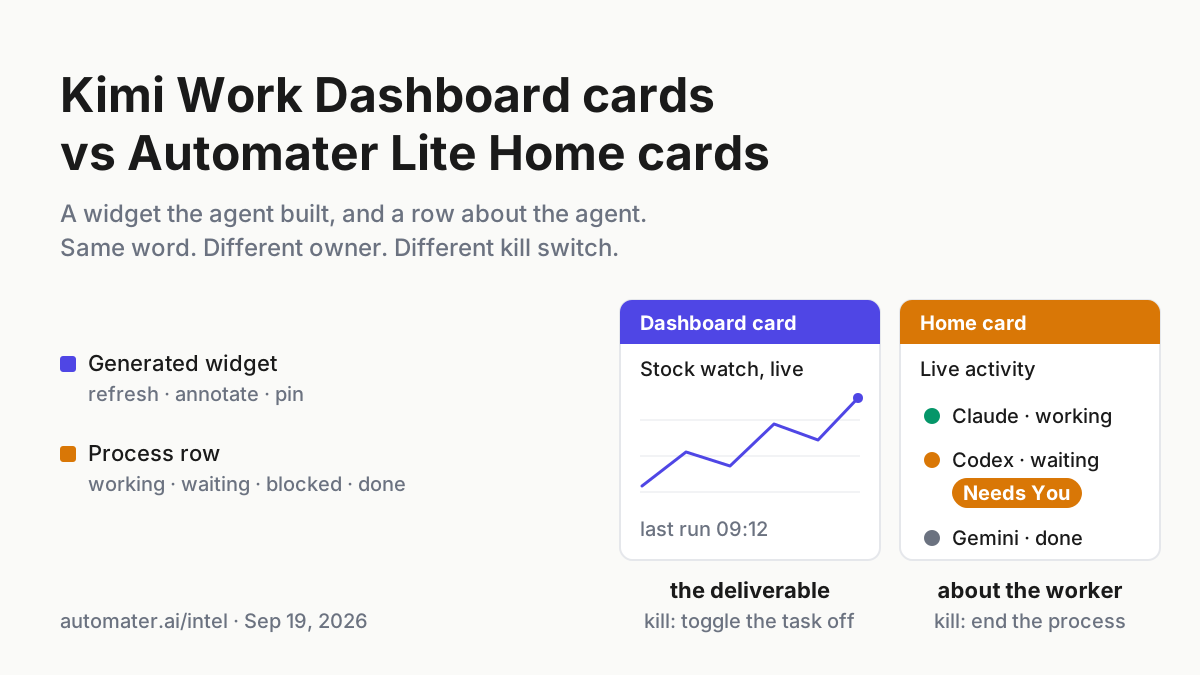
Picture two cards on the same Windows desktop at 9:15 on a Tuesday. One is a stock-watch widget that Kimi Work built from a single sentence on Friday and has refreshed on its own ever since. The other is an amber row in a tray panel for a Codex session that has been waiting on a yes for eleven minutes. Both are called cards. Only one of them is a process you can end.
That is the whole comparison, and it is worth settling before the autumn’s card sprawl gets worse. A Kimi Work Dashboard card is a generative, persistent widget: the model builds it, a bound task may keep it fresh, and it lives in a dashboard until you delete it. An Automater Lite Home card is a fleet row: it tells you which assistant is working, which one is waiting on you, what the sessions cost and where the transcripts went. They photograph alike and do opposite jobs.
By Tuesday you should have a decision table for any card-shaped thing a vendor ships: does this need belong on a status wall of running CLIs, on a personalized information surface the agent builds, or inside a vendor’s cloud coordinator. Kimi’s documentation gets cited once, in the next section. After that the table and the runbook do the work.
Kimi Work Dashboard as the help pages describe it, Sep 11, 2026
Kimi Work launched on Jun 3, 2026 and the help overview still calls it Beta. It is a local agent for knowledge workers that lives in the Work mode of the Kimi desktop client on Mac and Windows, and since version 3.1.0 it runs on the Kimi K3 model (Kimi Work overview). The Dashboard resource page, updated Sep 11, 2026, positions the Dashboard as a cross-session space for organizing the interactive widgets you create through conversation (Kimi Work Dashboard).
The help page’s definition is the one to keep: “A dashboard is a container for widgets. It brings the widgets you care about most into one persistent, personalized view, organized around a topic, project, or goal. A dashboard is not tied to any single conversation — you can open it at any time, and manage its widgets from any chat.” (Dashboard help)
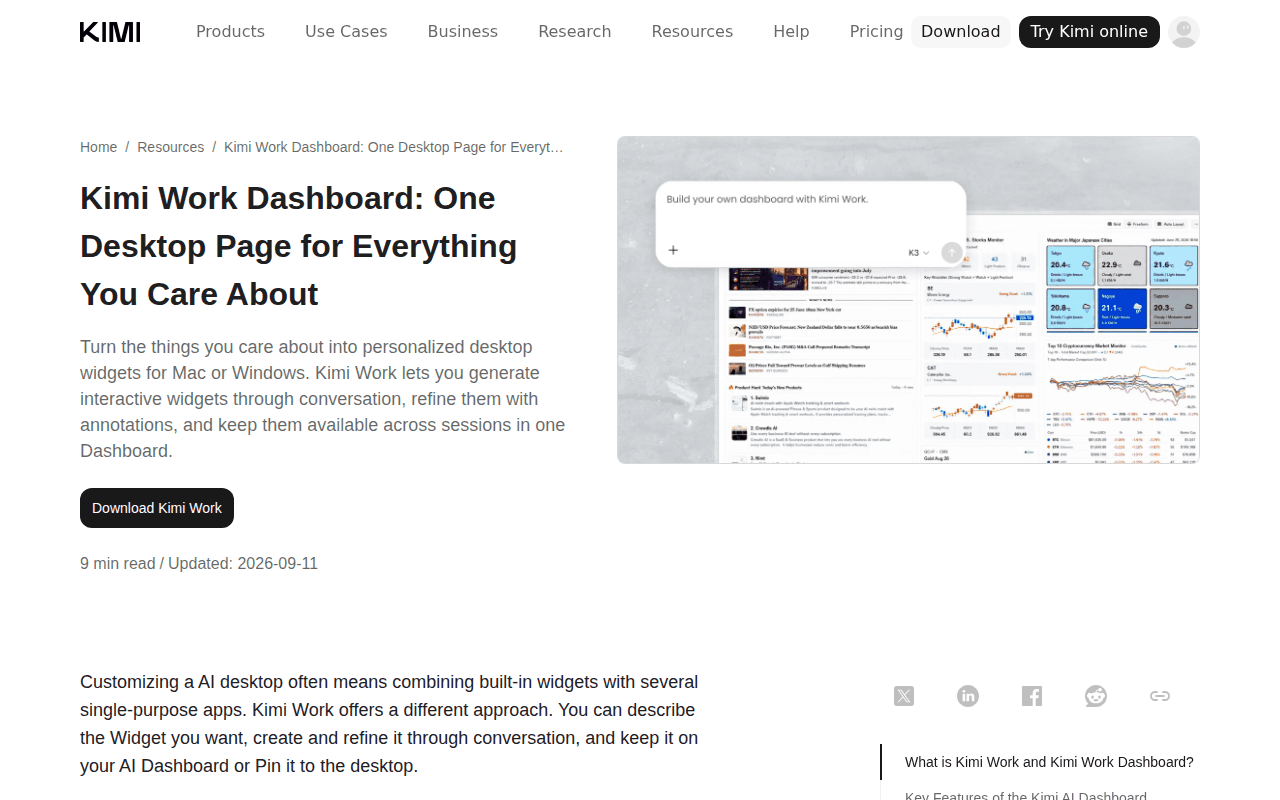 Screenshot: kimi.ai, “Kimi Work Dashboard: One Desktop Page for Everything You Care About” (updated Sep 11, 2026), captured Sep 19, 2026.
The limits are verbatim on the same page. “Each user can create up to 2 dashboards.” “Each dashboard can hold up to 20 widgets.” Annotation mode records positional feedback, “up to 10 entries”. A live widget is “a widget bound to a widget task, whose content updates automatically with each run of the task” (Widgets help), and from the dashboard you can toggle that task on or off and “check the 10 most recent runs (run time and status)”. The delete warning is the sentence operators should read twice: “Deleting a dashboard also deletes all widgets in it and their associated widget tasks. This cannot be undone — please proceed with caution.”
Cards, in Kimi’s vocabulary, are three things. First, the dashboard card: “The model can surface a dashboard card in a chat. Click the card to open the corresponding dashboard page in the right-side panel, without leaving the current conversation.” Since 3.2.0 (Aug 19, 2026) the dashboard list page is gone, dashboards switch from a top tab bar, and several can be open in the preview pane at once (release notes, 3.2.0).
Second and third, the sub-agent card and the deliverable card, which arrived for remote control in 3.2.7 (Sep 11, 2026): “Remote control messages now display in segments, with sub-agent cards and deliverable cards aligned with the desktop” (release notes, 3.2.7). Remote control itself, driving Kimi Work on the desktop from your phone, landed in 3.2.5 on Sep 4, and 3.2.11 on Sep 18 added the sub-agent execution process to the detail panel.
There is also Pin to Desktop, which “pins the widget to your computer desktop as a standalone window with a customizable size; the window closes automatically when you quit the app.” That one gets its own policy in the sibling piece on a pin allowlist.
What the docs do not say matters for the table. The number of widget tasks that may run at once “varies by plan” and no figure is given. There is no credit cost per run on these pages, no export of run records beyond the ten shown, and nothing about who may pin or what a pinned widget may display. When the docs do not say, the operator assumes the tighter case.
A widget that refreshes is an agent acting while you look away
A chatbot suggests a number. A live widget goes and gets it, on a schedule or on an event, and Kimi’s FAQ says scheduled tasks on the desktop run locally and only while the app is open, with missed triggers not run retroactively (Kimi Work FAQ). So the card on the dashboard is the visible face of an unattended local process, which is the trust question the sibling piece on widget scheduled tasks works through.
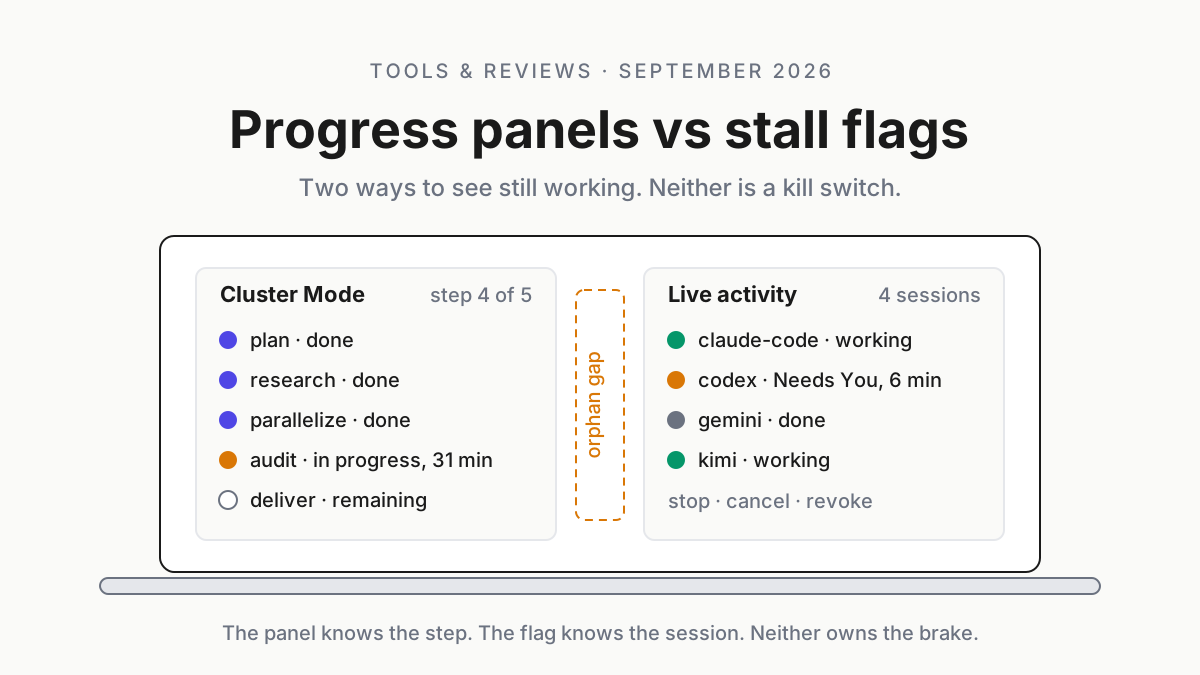
A Home card in a tray is the visible face of somebody else’s process, a CLI the operator started and may have forgotten. One card reports that something was done; the other reports that someone is stuck. A desk that cannot tell those apart at a glance is where the card metaphor sprawl becomes an incident.
Kimi Work Dashboard cards and Lite Home cards, side by side
Print this next to the decision table. Every row is a place the two models disagree.
| Dimension | Kimi Work Dashboard card | Automater Lite Home card |
|---|---|---|
| What the card is | A widget the model generated, or a dashboard, sub-agent or deliverable card pointing at one | A row about an assistant process or its sessions (Live activity, Session library, Usage) |
| Where it comes from | Conversation; the model emits it when it fits the scenario | Detection of installed CLIs and their session files on the machine |
| What it holds | Generated content, optionally refreshed by a bound task | State (working, waiting, blocked, done), transcripts, token spend |
| What you do with it | Refresh, annotate (up to 10), resize, save to a dashboard, pin | Read the flag, open the session, search, resume, meter |
| Lifetime | Persists across chats until deleted; pins close on app quit | Lives while the process or its transcript exists |
| Documented limits | 2 dashboards, 20 widgets each, 10 annotations, 10 run records | The homepage lists 45 session formats, 41 apps and CLIs, 11 resumable CLIs, 9 providers probed |
| Who owns the kill | You, by toggling the widget task off; deleting a dashboard destroys its widgets’ tasks | You, by ending the process; stopping, cancelling and revoking stay free |
| What it costs | Kimi credits; the help pages give no per-run figure | Free in Lite; Pro adds managed sessions |
| What it cannot see | Other CLIs on the machine | The inside of Kimi’s widget tasks |
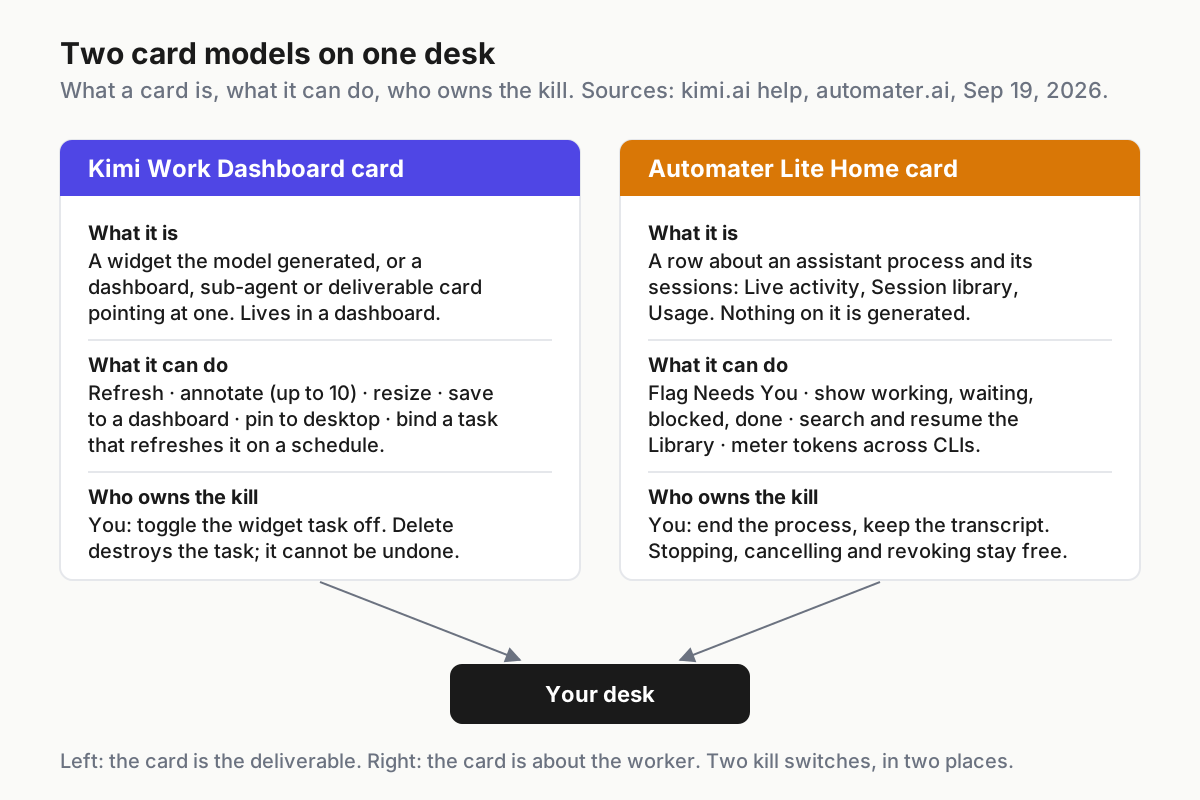 Left: the card is the deliverable. Right: the card is about the worker. The kill lives in a different place on each side.
Automater Lite Home cards: a status wall for assistant processes
Automater Lite is a free desktop tray companion for Windows. The homepage calls its surface Home cards, and the free set is “Seven cards. Free forever.”: Grok Bots, Usage, Live activity, Session library, Voice, Detected AI apps and Settings (automater.ai). Nothing on a Home card is generated. Every card is a view of something already running or already written to disk.
Live activity is the stall wall: “Amber the moment an agent blocks on you.” and “Who is working and who is waiting, live.” Needs You flags catch questions and permission prompts before they sit until standup, which is the stall flag job in the homepage’s words. Session library is the archive: the homepage lists 45 session formats, full-text search across every vendor at once, and one-click resume on the 11 CLIs that support it. Usage is the meter: token spend across supported CLIs from one card, and quota surprise alerts for the runaway agent.
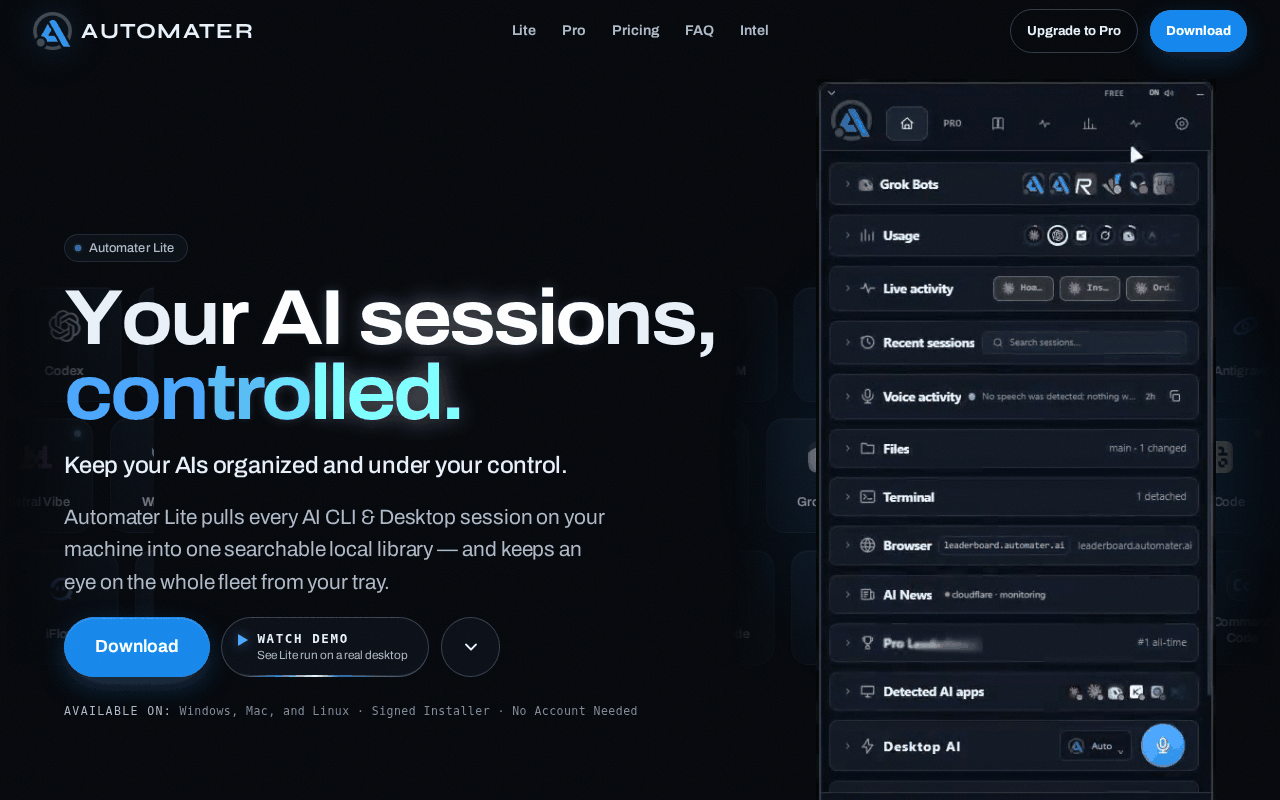 Screenshot: automater.ai, “Automater Lite: Every AI forgets. Automater doesn’t.” (homepage, undated), captured Sep 19, 2026.
The homepage’s own split is “Lite watches. Pro operates.” Pro adds managed sessions that start, steer, interrupt and stop agent sessions from the panel, pop-outs, diagnostics, the built-in Files, Terminal and Browser tools, and the Library’s inline composer. The kill path does not move behind the paywall: “Stopping, cancelling and revoking stay free too.” Automater Lite is free on automater.ai; Pro is $50/year.
What Lite does not do is the useful half of the comparison. It builds no widgets and generates nothing. It is no gateway, sets no org policy, routes nothing and enforces nothing on Kimi or anyone else; it is the operator’s desk-level operating layer, and the free tier is described in the Windows tray piece. Its Library imports Kimi Work’s desktop sessions as well as Kimi Code CLI ones; resuming a desktop session hands you back to the Kimi Work app rather than a terminal.
The decision table: status wall, information surface, or cloud coordinator
Three surfaces claim the word card this month. Pick by the need.
| You need | Status wall (Lite Home cards) | Information surface (Kimi Work Dashboard) | Vendor cloud coordinator (Claude Code Projects, Cursor Projects) |
|---|---|---|---|
| To know which CLI is blocked on a prompt right now | Yes; Needs You on Live activity | No; a widget does not watch other processes | Only for its own threads |
| A number to glance at all day (a market, a queue, a build) | No; Lite meters tokens, not your data | Yes; a live widget with a bound task | No |
| Work that decomposes into branches and PRs | No; Lite watches processes | No | Yes; that is the product |
| Evidence after something went wrong | Local transcripts, searchable | Ten run records per live widget, on screen | Vendor-side history, on the vendor’s terms |
| A kill that is a fact rather than a request | End the process, free | Toggle the task off; delete destroys | Stop per thread; Pause stops every thread (Claude Code Projects docs) |
| Persistence across a reboot | Transcripts and inventory persist; keepalive for the watch | Dashboards persist; pins close on quit; missed runs are skipped | Runs in the vendor’s cloud regardless |
| Cost visibility | Local token meter across CLIs | Credits; the docs give no per-run figure | Vendor usage views |
Two of the three columns belong on your desk. The third belongs in the coordinator piece and the earlier Cursor Projects comparison, and the only thing to take from it here is that a coordinator’s cards are about its own workers, never yours.
Put both card models on one desk in five steps
Budget an hour. Steps 1 and 2 are paper; 3 to 5 make the paper true.
Step 1: inventory every card-shaped thing
One file, on the machine, read by you on Mondays. Illustrative shape:
# desk-cards.yaml: illustrative; one entry per card surface on this machine
surfaces:
  kimi-work-dashboard:
    model: information-surface
    dashboards: 2            # Kimi's documented cap per user
    widgets_live: 6          # widgets with a bound task; the ones that act
    widgets_static: 9
    pins: 2                  # close when the client quits
    kill: toggle_task_or_delete
  lite-home-cards:
    model: status-wall
    cards: [live-activity, session-library, usage]
    processes_watched: 7     # CLIs Lite detected today
    kill: end_process
  cloud-coordinators:
    model: coordinator
    products: [claude-code-projects]
    kill: vendor_stop_or_pause
Step 2: tag every card as widget, deliverable, status, or control
Four tags, no fifth. A widget shows data. A deliverable is a finished artifact (Kimi’s deliverable card, a PR). A status card reports a process. A control card lets you start, steer or stop one, which on the Automater side is Pro’s managed sessions and in Kimi is the task toggle.
If a card wants two tags, it is two cards, and the vendor has merged them for you; split them in your own head before the incident does.
Step 3: spend Kimi’s limits on purpose
Two dashboards is a design constraint worth using. Keep one for watch (live widgets that refresh) and one for work (static widgets and deliverables for the current project), so the cards that act are never mixed with the cards that merely show. Twenty widgets per dashboard is a ceiling you should sit well under; ten live widgets is already ten unattended tasks.
The ten run records are the only run history you get, so copy the run time and status into a text file weekly. The chart shows the caps as Kimi documents them.
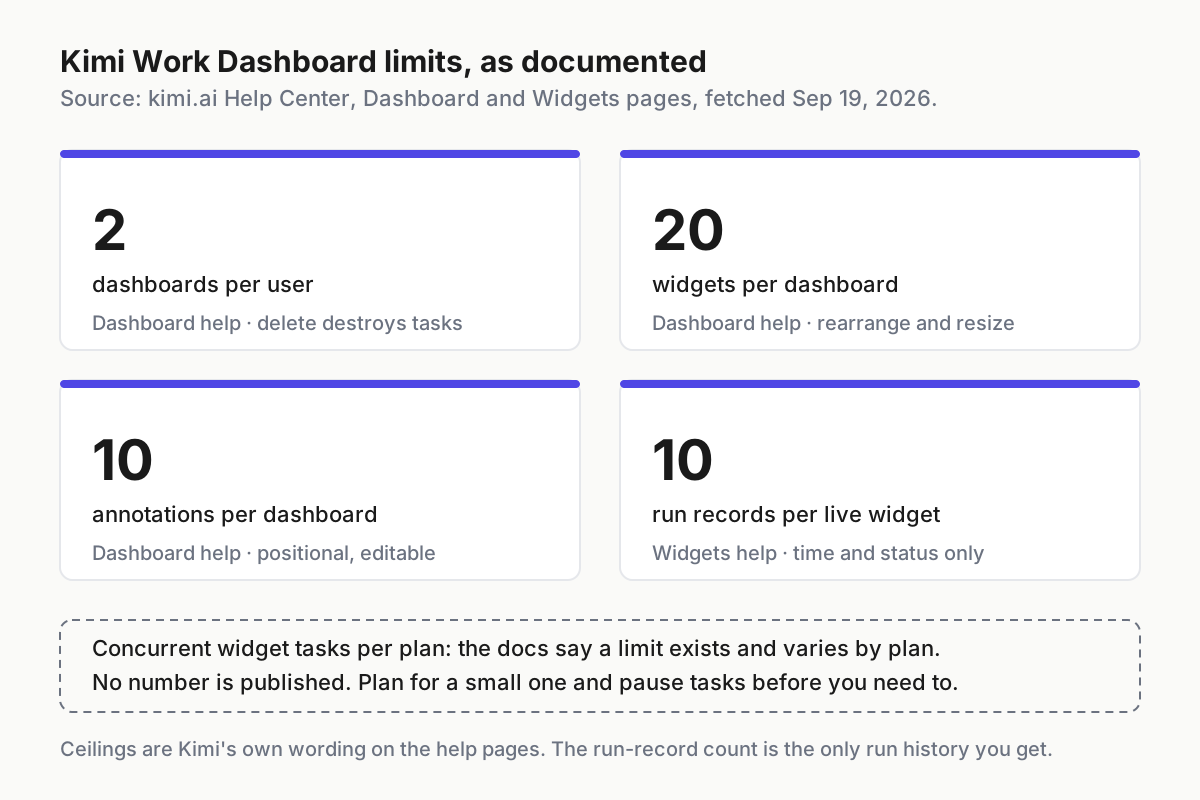 Kimi’s documented ceilings, from the help pages. The number the docs do not give is concurrent widget tasks.
Step 4: route every needs-a-human signal to the status wall
A widget cannot tell you that Claude Code is waiting on a permission prompt; it is not watching Claude Code. The Live activity card is. So the rule is simple: anything that means someone is stuck goes on the status wall, and anything that means something is known goes on the dashboard. Put the tray where you look first and the dashboard where you look when you have a question.
Step 5: write down who owns the kill, per card class
Three lines, in the same file:
- Live widget: pause from the Dashboard page by toggling the task off. Delete only when you mean it: per Kimi’s help page, deleting a widget removes it from the original chat and every dashboard, deleting a dashboard also deletes its widgets and their tasks, and neither can be undone.
- CLI session: end the process from the tray, keep the transcript. In Lite this is free. In Pro, interrupt and stop are the managed-session verbs.
- Cloud coordinator: the vendor’s stop, with the latency that implies. Rehearse it on a throwaway project before you need it.
Five ways a Kimi Work Dashboard misleads the desk, and the signal for each
A widget gets trusted as status. Signal: a live widget’s last run is older than the newest line in the CLI transcript it was supposed to summarize. Cause: the task runs on its schedule, not on your process’s events. Fix: step 4; status lives on the wall.
The delete cascade. Signal: a scheduled refresh that used to fire has stopped, and the widget is gone from a second dashboard too. Cause: someone deleted a dashboard, which deletes its widgets and their tasks and cannot be undone. Fix: pause, never delete, until the weekly copy of run records is done.
The task ceiling. Signal: Kimi refuses a new widget task. Cause: the per-plan concurrency limit, which the docs say exists and do not size. Fix: pause tasks from the Dashboard page, which is what the help page tells you to do, and keep live widgets under ten.
The app-quit blind spot. Signal: gaps in the ten run records overnight, and pins that vanished by morning. Cause: scheduled tasks run only while the app is open, and pins close when the client quits. Since 3.2.6 (Sep 7, 2026) Kimi asks you to confirm still-running scheduled tasks before quitting; treat that dialog as a kill switch.
Card sprawl. Signal: forty widgets across two dashboards and nobody can say which six matter. Cause: generation is free and deletion is scary. Fix: the tags from step 2 and a Friday prune.
The status wall belongs to the operating layer
A dashboard the agent builds is a fine thing, and the better the model gets at building them the more of them you will have. None of them replace the boss. The operating layer on a desk is the thing that sees every CLI, raises the stall flag, keeps the transcript, counts the tokens and holds the kill switch, and it does that whether or not any vendor ships a card that week. That is the one boss rule and the command center thesis in one sentence: many agents, one place that knows what is running.
Kimi Work’s cards are about what the agent made. Lite’s cards are about what the agents are doing. Keep both, label both, and never let the pretty one stand in for the amber one.
FAQ: Kimi Work Dashboard and Lite Home cards
How many widgets can a Kimi Work Dashboard hold?
Kimi’s help page states each user can create up to 2 dashboards and each dashboard can hold up to 20 widgets. Annotations are capped at 10 per dashboard and a live widget shows its 10 most recent runs. The number of widget tasks that may run at once varies by plan and is not published.
Can Automater Lite show Kimi Work widgets?
No. Lite’s Home cards report assistant processes and their sessions: which CLI is working, waiting or blocked, the searchable local Library, and token spend. It generates nothing and cannot see inside a widget task. Whether a Kimi Work session appears in the Library depends on it writing a transcript the Library imports.
Is a Kimi dashboard card the same as a session card?
No. A Kimi dashboard card is a link the model drops into a chat that opens a dashboard in the preview pane. A session card, our shorthand for Lite’s Home cards, is a status row about a running assistant process. One points at generated content; the other points at a worker you can stop.
Sources
- Kimi Work Dashboard: One Desktop Page for Everything You Care About (kimi.ai resource page, updated Sep 11, 2026)
- Kimi Work help: Dashboard (limits, annotations, Pin to Desktop, dashboard card)
- Kimi Work help: Widgets (widget tasks, live widgets, run records)
- Kimi Work help: Release Notes, 3.2.7 (Sep 11, 2026), sub-agent and deliverable cards
- Kimi Work help: Release Notes, 3.2.0 (Aug 19, 2026), dashboards in the preview pane
- Kimi Work help: Overview (launched Jun 3, 2026; Beta)
- Kimi Work help: FAQ (scheduled tasks run only while the app is open)
- Automater homepage: Home cards, Live activity, Session library, Usage, Pro
- Claude Code docs: Projects (Stop per thread, Pause stops every thread)
- @Kimi_Moonshot on X: Kimi Work launch post (Jun 8, 2026)