Annotation Is Not Approval: The Human in the Loop Annotation Approval Split
Human in the loop annotation approval blurs when note-taking sits beside deploy, pin and schedule buttons. Tier gestures by consequence; check the gate weekly.

Go deeper. Build your own.
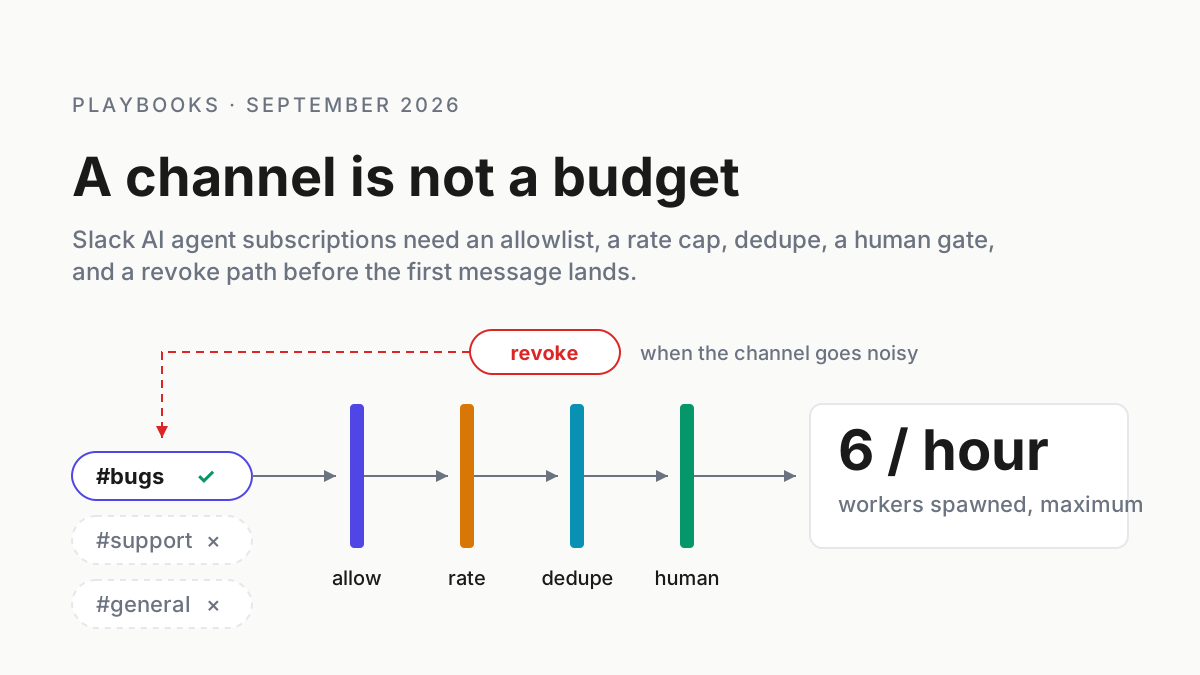
A note that reads looks fine, dropped on the corner of a widget at 16:52, is the most consequential thing many teams write all day, because someone downstream reads it as permission. It was feedback for the model. It got treated as a go-ahead for the schedule the widget is bound to. Nobody clicked anything with the word approve on it, because the product never offered such a button in that spot.
That gap is the human in the loop annotation approval split, and agent dashboards are widening it. Kimi Work’s dashboards carry an annotation mode capped at ten entries; its permission system carries three levels, one of which promises that nothing happens without your consent. Those are two different lanes, and the product is honest about which is which. Operators blur them, usually because the annotation is where the cursor already is.
This runbook draws the lanes: a definition of each, a tiering of every dashboard gesture by the consequence it can reach, four tests that tell commentary from a gate in any product, a proposal-plus-approve pattern for products that lack a gate, and a weekly check that catches the drift back.
What Kimi’s pages call annotation, and what they call approval
The Dashboard help page describes annotation in two sentences: “Click “Annotate” to enter annotation mode: select any element in a widget to create a positional annotation and record your feedback. Annotations are listed in chronological order, up to 10 entries; click a saved annotation to edit it again.“ (Kimi Work Dashboard help). The resource page, updated 2026-09-11, puts the purpose plainly: “use annotation mode to select the area you want to change and describe the adjustment” (Kimi Work Dashboard resource page). Feedback, adjustment, regeneration. The word approve does not appear anywhere near it.
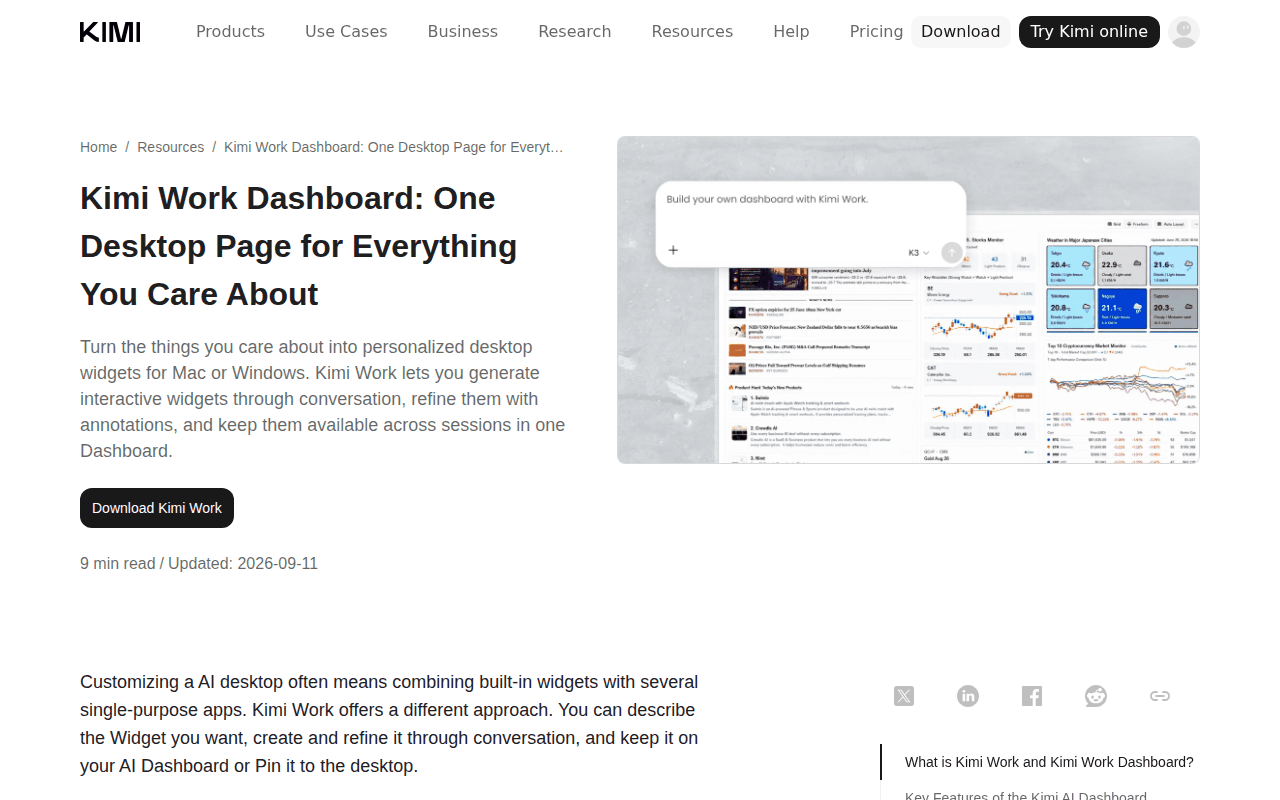 Screenshot: kimi.ai, “Kimi Work Dashboard: One Desktop Page for Everything You Care About” (updated Sep 11, 2026), captured Sep 19, 2026.
Approval lives on a different page. The FAQ: “Kimi Work provides three levels of permission control, and you choose how to authorize: Default: routine operations run automatically — Kimi prompts you for explicit authorization before sensitive operations such as modifying, overwriting, or running code on your local files; Manual approval: ask for authorization before acting; Fully automatic: run directly without asking for authorization.” And the sentence to underline: “When you choose “Manual approval”, nothing happens without your consent.“ (Kimi Work FAQ).
The three levels became global in 3.2.2 (2026-08-26) (release notes). That is a gate: it sits before an action, it can say no, and the vendor stakes a promise on it.
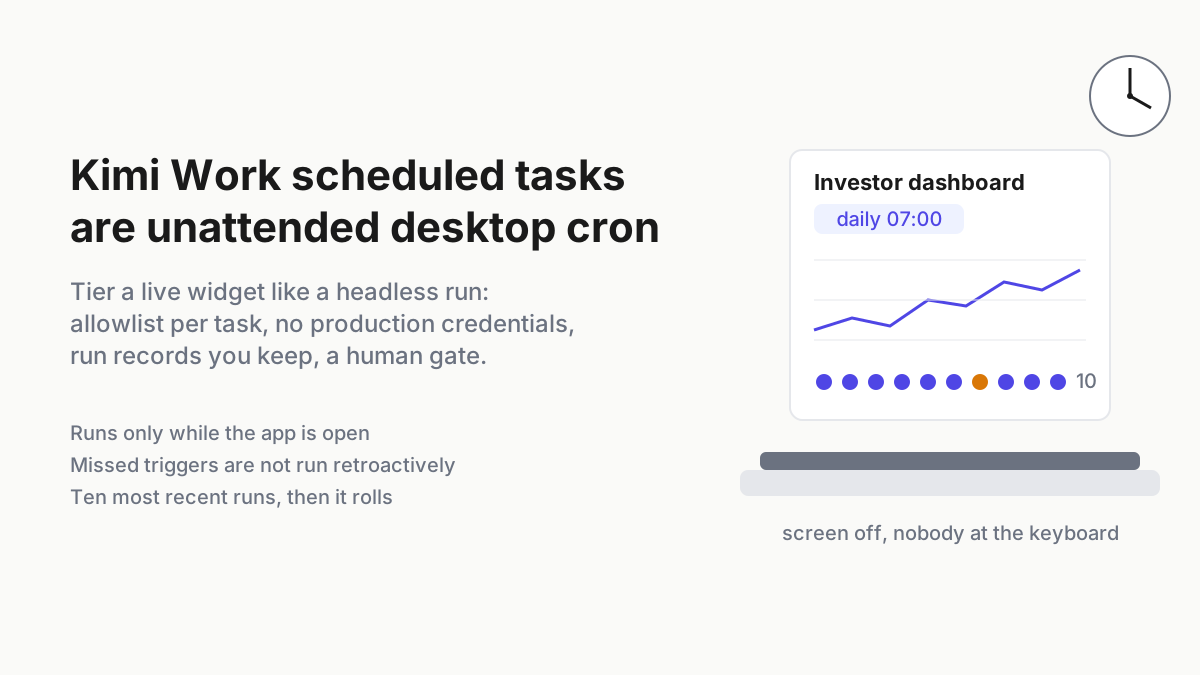
The same dashboard page lists the gestures that sit an inch from Annotate. For a live widget you can “toggle it on or off” and “check the 10 most recent runs (run time and status)”. “Pin to Desktop: pins the widget to your computer desktop as a standalone window with a customizable size; the window closes automatically when you quit the app.”
One thing the dashboard card is not is an edit surface: “The model can surface a dashboard card in a chat. Click the card to open the corresponding dashboard page in the right-side panel, without leaving the current conversation.” The card is a door, not a form.
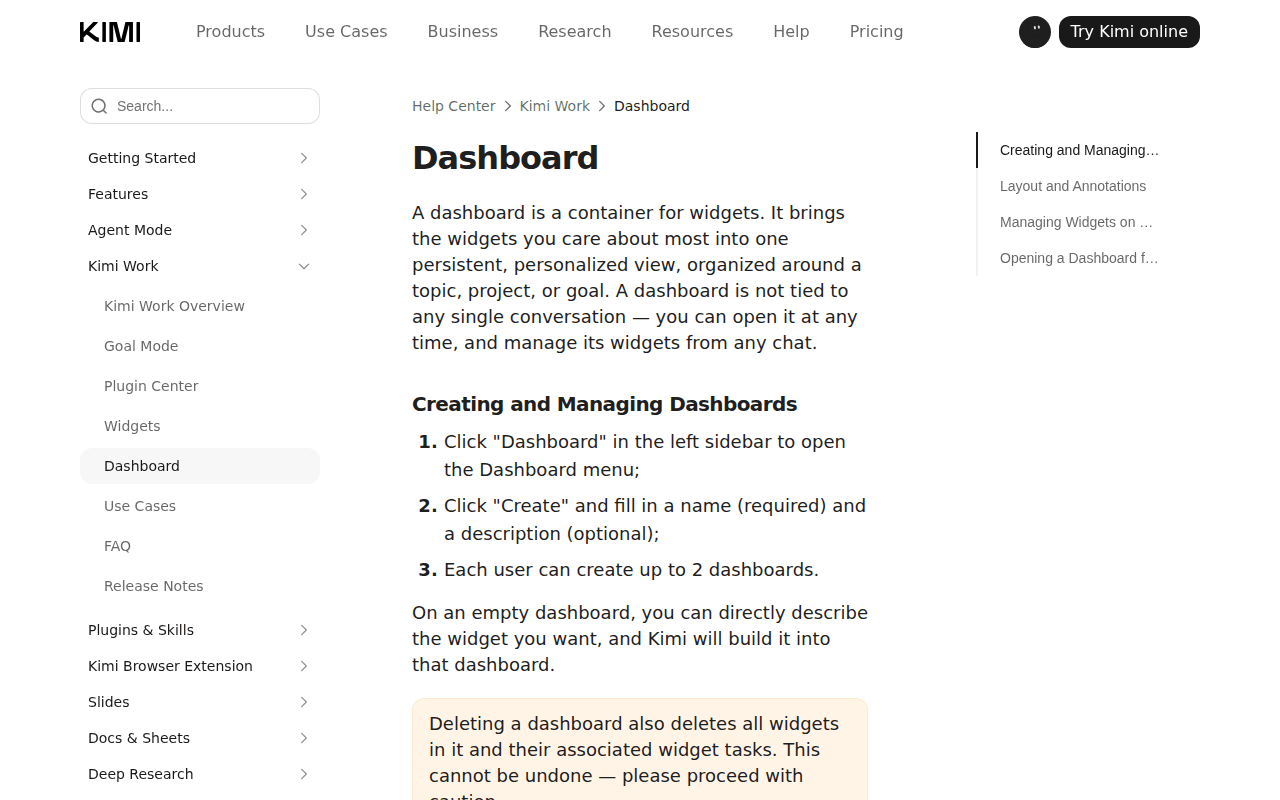 Screenshot: kimi.ai, “Kimi Work Dashboard - Kimi Help Center” (undated), captured Sep 19, 2026.
AutoClaw supplies the contrast. Its Hermes self-evolution post (Jun 1, 2026) states the principle: “Core principle: AutoClaw never secretly modifies itself. Every evolution requires your explicit approval.” The flow is “Three steps: You speak → It proposes → You approve.” and “Rejected proposals won’t be repeated within two weeks” (AutoClaw, Hermes self-evolution); v1.16.2 (2026-08-10) then “Improved Hermes evolution visibility and activation sensitivity” (AutoClaw changelog).
A proposal arrives, a person clicks approve, and a rejection is remembered. Whatever else you think of a self-modifying desktop agent, that is a real gate, with the two properties a note never has: it can refuse, and the refusal changes what happens next.
Why the human in the loop annotation approval gap opened once agents started acting
On a chatbot, a note is harmless. The model suggests, you comment, the suggestion improves, and nothing changes until a person does something with their own hands. On an agent, the output is often already an action, or the standing instruction for one: a widget bound to a schedule, a plugin that deploys, a file the agent has already modified. A note on a suggestion is feedback; a note on an action is, to everyone who reads it later, consent.
Three things make the drift structural. The annotation is where the cursor already is, so it collects the reviewer’s verdict whether or not it was designed to. It is editable and capped, so it reads as lightweight, and lightweight things get used for everything. And it leaves a visible artifact on the widget, which is more than most real approvals leave behind.
Given a place to write and a place to decide, people write.
Step 1: define the two lanes and give each a record
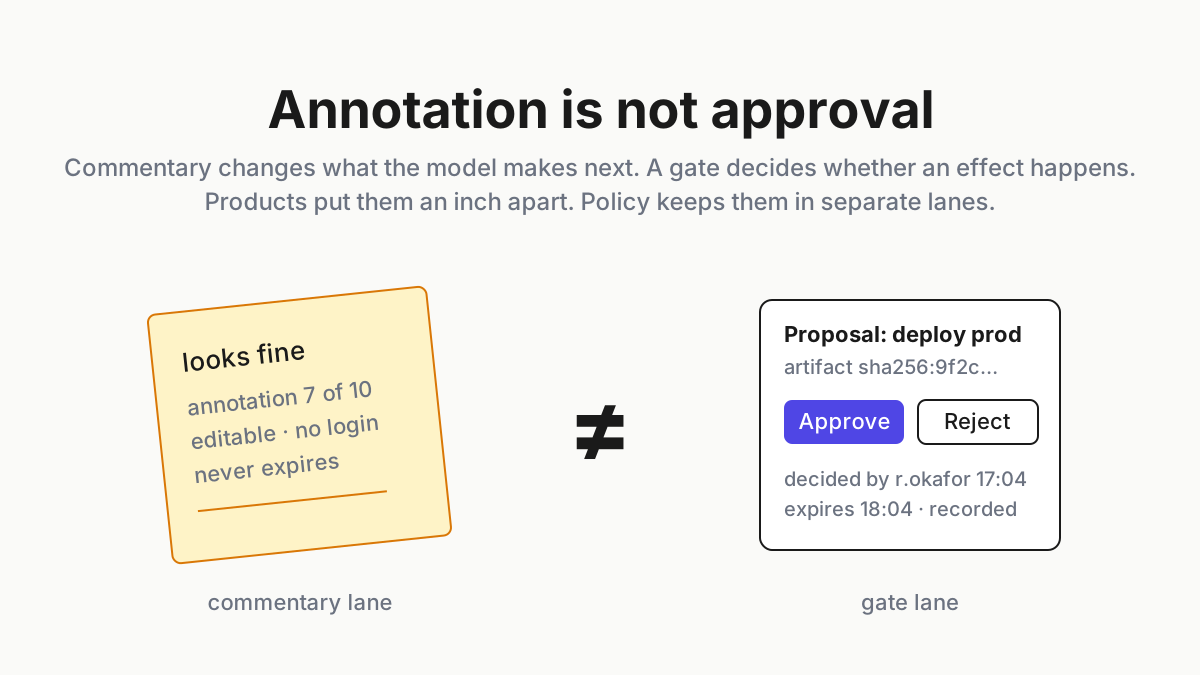
The commentary lane is anything that changes what the model produces next time: annotate, describe the adjustment, regenerate, edit the prompt. Its output is a better widget. Its record is the note itself, which can be edited again and is capped at ten without anyone’s consent being affected, because no consent was given.
The gate lane is anything that decides whether an effect happens: approve, reject, a permission prompt answered, a required reviewer on a deploy. Its output is an action taken or withheld. Its record is who decided, what exactly they decided about, when, and whether the decision has expired.
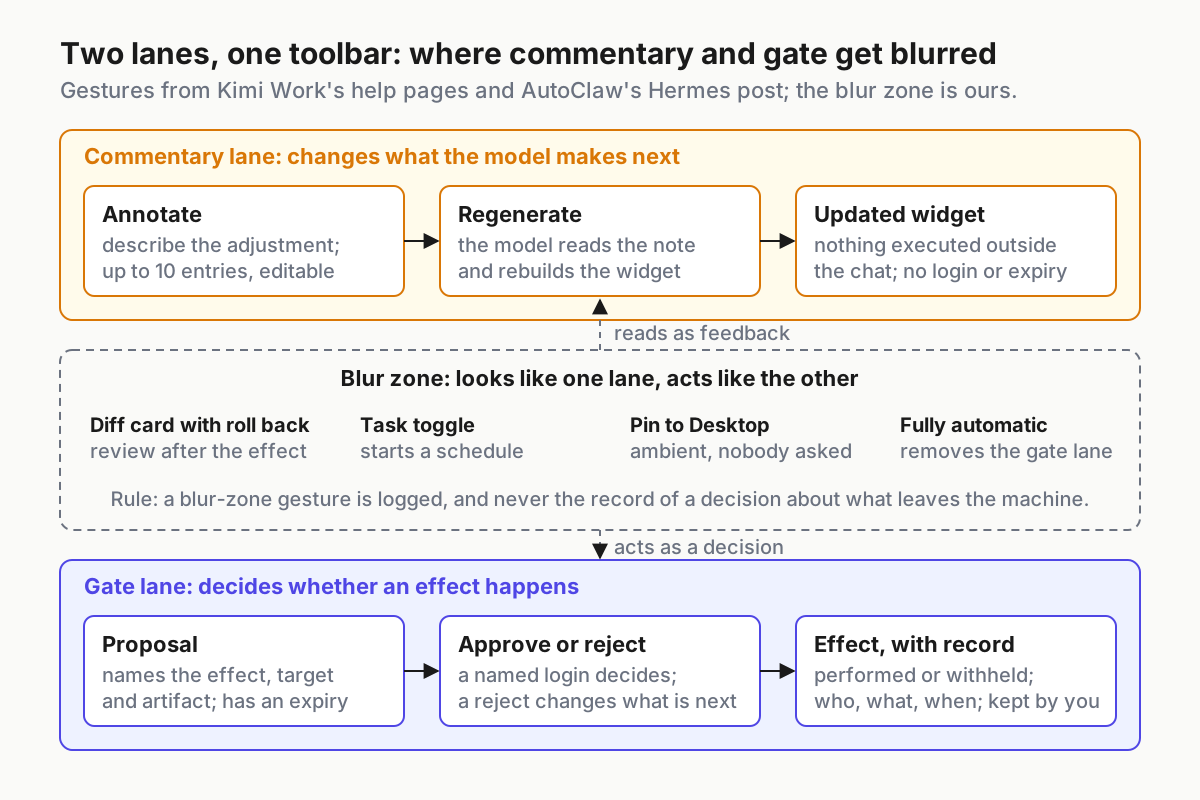 The lanes never cross in the policy. In the product they share a toolbar, which is where the blur zone comes from.
| Property | Commentary lane | Gate lane |
|---|---|---|
| Changes | What the model produces next | Whether an effect happens |
| Can say no | No; it can only say different | Yes, and no is recorded |
| Identity attached | Optional | Mandatory; the deciding login |
| Expires | Never; it is context | Yes; a decision is about a state |
| Undo | Edit the note | Reverse the effect, if reversible |
| Example on Kimi | Annotate, describe the adjustment | Manual approval prompt |
| Example on AutoClaw | A chat instruction | Hermes proposal, approve or reject |
The blur zone is everything the product puts between the two. Kimi’s 3.1.8 note is a good specimen: “Transparent file editing: after the Agent modifies a file, a diff summary card is generated — review changes line by line and roll back with one click” (release notes). That is review after the effect, with an undo. Useful, and not a gate; the file was already modified when the card appeared.
A task toggle starts a schedule, and the docs describe no prompt when you flip it. A pin makes a widget ambient without asking anyone. The card-metaphor piece maps that whole class of UI ambiguity.
Fully automatic removes the gate lane entirely: “Enabling the “Fully automatic” permission is deemed as your acknowledgment and acceptance of the above risks … You shall bear the results of operations performed based on your authorization.“
Step 2: tier every gesture by the consequence it can reach
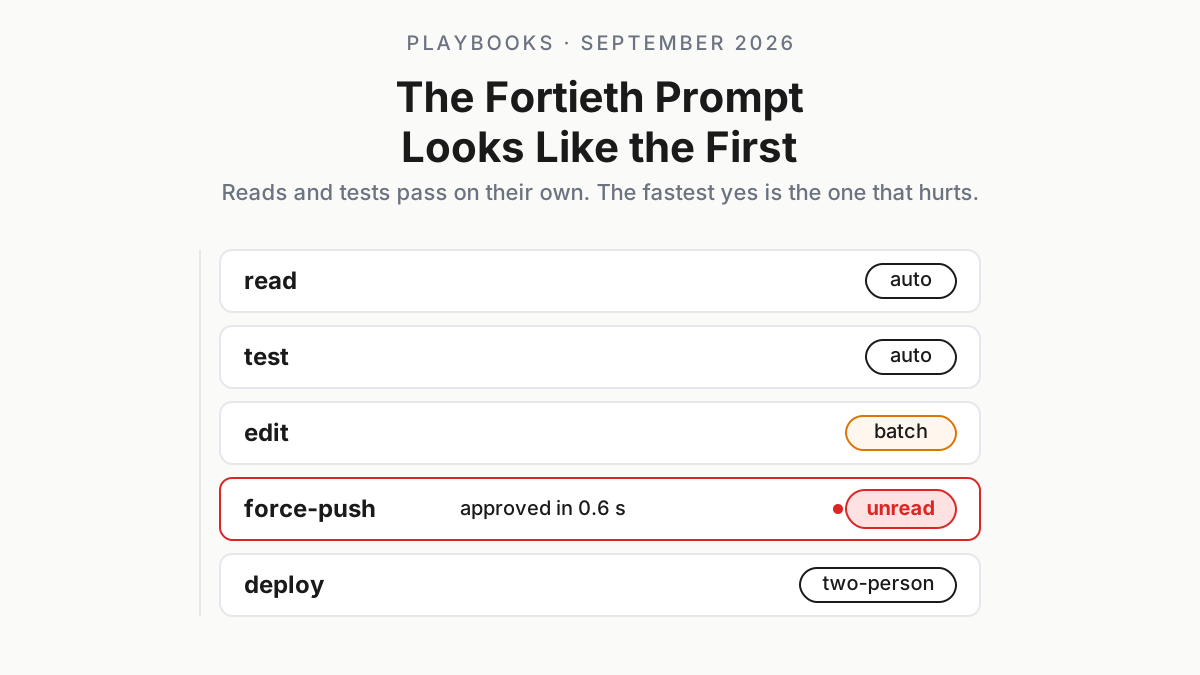
The gesture’s name tells you which lane the product thinks it is in; the consequence class tells you which lane it is actually in. Tier by the second. Four classes, cheapest to dearest: commentary; what you see; what runs on this machine; what leaves the machine.
| Gesture | Commentary | What you see | What runs locally | What leaves the machine |
|---|---|---|---|---|
| Annotate | Fine, no gate | Fine, no gate | Never sufficient | Never sufficient |
| Edit a widget, or the diff card | Fine | Fine | Log it: who, what, undo path | Never sufficient |
| Refresh | Fine | Fine | Log it: a refresh may re-run the bound task | Never sufficient |
| Pin to Desktop | Fine | Log it: pins are ambient | Log it | Never sufficient |
| Toggle a widget task | Fine | Log it | Explicit decision, recorded | Never sufficient |
| Approve or reject | Fine | Fine | Explicit decision | The only sufficient gesture |
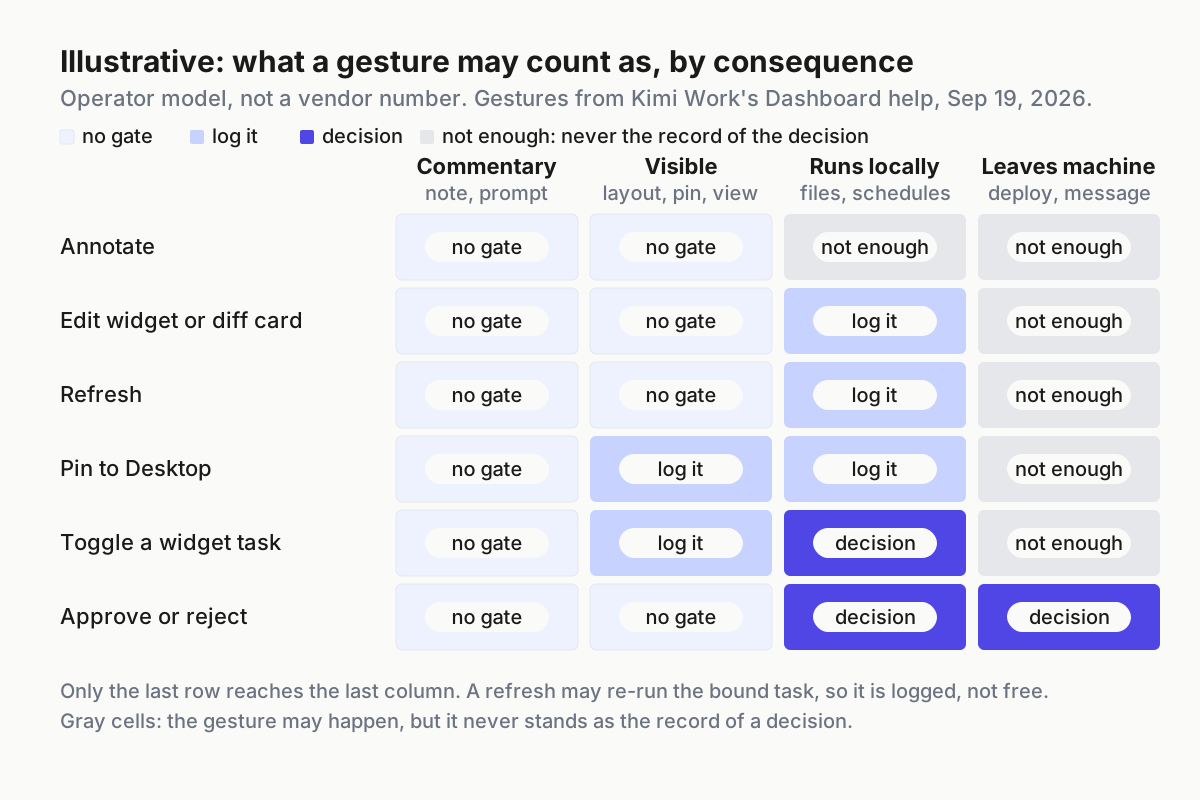 Illustrative. Only the last row reaches the last column. Everything else that touches what leaves the machine is a note pretending.
Refresh looks like a view gesture and may not be one. The help page says only “Click “Refresh” to update the content of the widgets on the dashboard.“ and does not say whether that re-runs the bound task and its plugins, so log it at the third class until you have checked.
The task toggle is the one people mistake most, because switches feel administrative. A switch that starts a nightly job with a deploy plugin behind it is a decision about what leaves the machine, and a switch alone is never the record of one. The scheduled-widget trust tier is the sibling for what that job may hold; this row is about who said it could run.
Step 3: four tests that tell a gate from a note in any product
These work on any dashboard, card, panel or chat.
- Does anything execute if I do nothing? If the effect happens without the gesture, the gesture is commentary, however it is labeled. A diff card with a roll back fails this test; a Manual approval prompt passes it.
- Is there a no? A gate has a reject that changes what happens next. Annotate has no reject; it has a different note. AutoClaw’s two-week memory of rejected proposals is what a real no looks like.
- Is a login attached, and can I read it back a week later? A gate leaves a record naming the person. A note leaves a note, editable by anyone with the dashboard open.
- Does it expire? A decision is about a state, and states change. A note is context and lives forever. If the product’s approval never goes stale, you have a note with a nicer verb.
Anything that fails two of the four is commentary. Write that beside the gesture in your inventory, in the product’s own words, and stop calling it an approval in standup.
Step 4: never let note-taking stand in for approve or reject on deploys, pins or schedules
Three effects deserve explicit rules, because they are the ones a dashboard makes easy and a note makes deniable.
Deploys. Kimi’s 3.2.7 note added “a website deployment plugin: once installed, deploy local website projects to the cloud in one step” (release notes). One step is one fewer than a gate needs. The rule: a deploy is approved by a named person on a proposal that names the target, outside the widget, and a note on the widget carries no weight. The pre-action gate piece makes the general case that a dashboard is where you look, not where you decide.
Pins. A pinned widget is an always-visible agent on someone’s desktop, and pinning it changes what the whole room sees. It needs a decision with a login, not a note that the layout looks good. The pin allowlist is the sibling for what may be pinned; here the rule is only that the pin is a logged decision.
Schedules. A toggle that starts a task with any effect beyond the widget itself is approved on a proposal, and the toggle happens after the approval, by the approver. Annotations on the widget it feeds are feedback for the next regeneration, nothing more.
# gates.yaml: illustrative operator policy; the product has no file like this
lanes:
  commentary: [annotate, describe-adjustment, regenerate, edit-prompt]
  gate:       [approve, reject, permission-prompt-answer, required-reviewer]
effects:
  deploy:   { gate: required, approvers: 1, proposal_names: [target, artifact_hash], expiry: 60m, note_counts: false }
  pin:      { gate: required, approvers: 1, proposal_names: [widget, machine, data_shown],   expiry: none, note_counts: false }
  schedule: { gate: required, approvers: 1, proposal_names: [task, plugins, external_effects], expiry: 24h, note_counts: false }
  redraw:   { gate: none }                 # annotate all you like
default: { gate: required }                # unclassified effects are gated until someone tiers them
note_counts: false is the whole policy in a field name. Once the gate lane exists and the prompts pile up, the HITL queue runbook takes over; this piece stops at the moment someone routes around the queue with a sticky note.
Step 5: wire a gate lane where the product only gives you a note
Most dashboards ship the commentary lane and leave the gate to a permission level that applies to everything at once, which is fine for file writes and useless for a deploy one plugin call away. The pattern that works is proposal plus explicit approve, the shape AutoClaw uses for its own evolution: the widget produces a proposal record; a person approves or rejects it with identity and a clock; only then does the effect happen, performed by the approver or by a job the approval unlocks.
{"proposal_id":"pr-2031","effect":"deploy","source":"widget wt-022 / market-site","target":"prod-eu","artifact_hash":"sha256:…","proposed_at":"2026-09-19T16:52:10+02:00","decision":"approve","decided_by":"r.okafor","decided_at":"2026-09-19T17:04:41+02:00","expires_at":"2026-09-19T18:04:41+02:00","annotations_seen":3,"annotations_count_as_approval":false}Illustrative shape; the field that matters is the last one. Keep it in a store you own, next to the run log. Neither vendor’s pages describe a separate login for a widget or an agent, so when a proposal comes from a widget, the login that owns the widget is the proposer, and it cannot also be the approver. Fleet replay is the practice that reads these records back when a number on a pinned widget turns out to be the reason a deploy went out.
Where the product offers a permission prompt, that prompt is the gate lane: “Operations that require permission will request confirmation based on the permission mode you select.” The mode decides when it fires, and a machine set to Fully automatic has no gate lane at all. One dialect for those modes across CLIs and desktop apps is its own runbook.
Step 6: the weekly check
Twenty minutes, same time each week, with the dashboards and the proposal store open.
- Read every annotation added this week that contains a verdict. Words like fine, ok, ship, go, approved, lgtm. For each, find the decision record it stood in for; if there is none, the effect it blessed gets re-proposed properly, this week.
- Diff the gate lane against the effects list. Every effect with
gate: requiredhas at least one decision record, or zero occurrences. Occurrences with no records is the finding. - Walk the blur zone. Diff cards rolled back, tasks toggled, widgets pinned: each has a log line with a login, or someone adds one now.
- Check the permission level on every inventoried machine. Any Fully automatic is a machine with no gate lane; treat it as an incident, not a preference.
- Expire stale approvals. Anything past
expires_atwith no effect recorded is closed, not carried over. - Re-read ten annotations cold. If you would have read one as approval, the rule from Step 3 is not landing; say so.
- Publish two numbers: verdict-shaped annotations found, and gated effects with no decision record. Both should trend to zero.
Failure signals that human in the loop annotation approval has collapsed into a note
Verdict words in annotations. A widget annotated ship it, ok to run, approved. Every one is a decision that left no decision record.
Effects with no proposal. A deploy, pin or schedule start that the proposal store does not know about. The gesture happened in the blur zone.
The approver and the proposer are the same login. Usually the widget’s owner toggling their own task. The gate exists on paper and not in practice.
Ten annotations, all edits to the first one. The cap is doing policy work; someone is using the note as a running approval log because there is nowhere else to put one.
Two lanes are an operating-layer distinction, not a product feature
Every product will keep putting the note next to the button, because that is where the reviewer is. The vendor labels the button; the operator decides which gestures are decisions, attaches a record to each, and refuses to let the cheap gesture inherit the expensive one’s authority. That policy has to hold across Kimi’s widgets, AutoClaw’s proposals, the CLI’s permission prompt and the coordinator’s review step, or it does not hold at all.
The desk-level operating layer is where it lives: one effects list, one proposal store, one weekly diff, one honest word for each gesture. Agents act, which is the whole argument for agentic operations rather than a smarter chat window. A note is how you talk to the model; a gate is how you tell it no. Keep them in separate lanes, and keep the record on your side of the screen.
FAQ: human in the loop annotation approval
Is annotating an AI agent’s output the same as approving it?
No. Annotation is feedback that changes what the model produces next; on Kimi Work it is positional commentary capped at ten entries. Approval is a decision that lets an effect happen or withholds it, recorded with a login and a time. A product can put both an inch apart; the policy keeps them separate.
How do I tell whether a button in an agent dashboard is a real approval gate?
Apply four tests: does the effect happen if you do nothing; is there a reject that changes what follows; is a login attached and readable later; does the decision expire. A Manual approval prompt passes the first test. A diff card with a roll back fails it, and an annotation fails all four.
What should require explicit approval on an agent dashboard?
Anything that leaves the machine or starts a standing job: deploys, messages, spend, pinning a widget to a shared desktop, and toggling on a scheduled task with external effects. Redraws and regenerations need no gate. Keep a proposal record per gated effect, with a field stating that annotations do not count.
Sources
- Kimi Help Center, Kimi Work Dashboard (Annotate, ≤10 entries; live widget task; Pin to Desktop; Delete; dashboard card)
- Kimi, “Kimi Work Dashboard: One Desktop Page for Everything You Care About” (updated 2026-09-11)
- Kimi Help Center, Kimi Work FAQ (three permission levels; Manual approval; Fully automatic risk text)
- Kimi Help Center, Kimi Work release notes (3.1.8 diff summary card; 3.2.2 permission levels; 3.2.7 deployment plugin)
- Kimi Help Center, Kimi Work Widgets (widget task, live widget)
- AutoClaw, “Hermes self-evolution” (Jun 1, 2026)
- AutoClaw changelog (v1.16.2, Hermes evolution visibility)
- @Kimi_Moonshot on X, live investor dashboard tutorial (Aug 19, 2026)